

What to do if “Steam is having trouble connecting to the steam servers” in Windows 10?
It is possible that the Steam client itself or one of the games is the cause of the problem that prevents Steam from opening correctly on the computer. However, the problem may be related to the permissions of our computer, therefore, all we have to do to see if the problem is solved is to try to run Steam with administrator permissions.
To correct this, we right-click on the Steam shortcut and select the option Run as administrator. This should open Steam on our computer without any problem, however, if Steam does not open then we must find another solution.

Methods to Fix “Steam is having trouble connecting to the steam servers”
- Update Steam and Windows 10
- Damaged files
- Connection issues
- Programs that interfere with Steam
- Steam won’t open
- Antivirus or firewall
- Clear the app cache
- Reinstallation
METHOD #1: Update Steam and Windows 10
An old version of Steam or Windows 10 may be causing the error that makes Steam cannot be opened on our PC. Therefore, it is advisable to check if there are new versions of the Steam client, as well as to check if we have pending updates to install in Windows 10.
To check if we have Steam updated correctly, just go to the Steam option > Check for Steam client updates and if so, we must install the latest version available.
Many users have reported that Steam does not open on their PC with a specific version of Windows 10, so it never hurts to check if we have pending updates to Windows 10 and in that case, we must install them to check if the problem is solved.
Recommended article:
How to Fix Discord javascript error – # 3 Easy Methods
METHOD #2: Damaged files
Another reason may be damage to files in the service directory. Rarely this happens. There are a pair of files that are causing Steam to have troubles logging into the network, and it gives the suitable alerts.
- Right mouseclick on the Steam icon on your desktop.
- Select “File Location” in the context menu.
- In the file with the program, using the search in the top of the window, we locate two files: ClientRegistry.blob & Steam.dll.
- We copy them to any other place, and then delete them permanently.
There is no need to worry about the performance of the program. Steam will not stop working, but will restore these documents itself, if it really does not connect to the network because of them.
METHOD #3: Connection issues
The Steam client accesses our account in a different way than it does from the web browser, therefore, it is possible that from the browser there is no problem, but from the client there is. Therefore, you should check that your network settings are compatible with Steam.
To do this, we must check the status of the Steam server, since it may be that at the time we are trying to open Steam on the PC, the server has a problem and we cannot connect to it.
Another problem that we can find when opening Steam may have to do with our router. Wireless connections can cause some intermittent lack of signal or even interference that can cause these types of errors. Therefore, if Steam does not open, we must try to connect our equipment to the router through an Ethernet cable and see if the problem continues.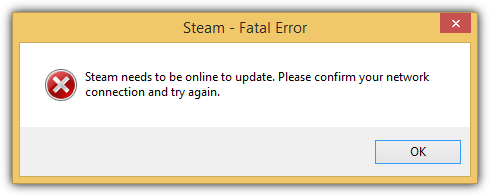
Other agents that can interfere with the proper functioning of Steam are firewalls or firewalls. A configuration incompatible with the use of the gaming platform client may be causing Steam or any game to not be opened on our PC. Check the use of a firewall with Steam from this link to the official website of the platform.
Of course, any virus or malware that we have been infected with may be responsible for Steam not opening. Therefore, it is advisable to pass a good antivirus to our computer to try to clean it of all these types of threats and check if after this the client opens correctly.
METHOD #4: Programs that interfere with Steam
There is also the possibility that certain applications that are running on our PC may negatively affect the use of Steam or the performance of the games. Some programs can even cause other series of more serious problems such as application crash or loss of connectivity. Therefore, it is advisable to review the programs or applications that may interfere with Steam and proceed with their correct configuration, or close and uninstall them.
The types of applications that can negatively interfere with the use of Steam can be various. The antivirus is one of them, as they are tools that can affect disk and network operations and cause problems with Steam. Even some games, which use copy protection technology, can be detected as malicious software by many antiviruses and generate false alarms.
If Steam does not open in Windows, it may also be because we are using a VPN. And it is that these types of tools can cause the Steam client to be unable to access the server and therefore not open on our computer. In this situation, what we must do is configure our VPN correctly to allow traffic from Steam and its games, or deactivate it to use it.
METHOD #5: Steam won’t open
As we have mentioned in the previous point, the use of firewalls or firewalls can also affect the correct operation of Steam, so it is advisable to consult the use of this type of tools together with the client of the video game platform.
Steam won’t open or the use of Anti-spyware tools on your computer may be causing this problem. This type of software can prevent the Steam client from receiving updates or even not being able to connect to the content servers of the platform.
We also have to be very careful with P2P clients, since these types of programs usually consume a large part of our bandwidth and system resources if they are not configured correctly. This can undoubtedly affect Steam connections, traffic or the resources that the platform requires for its correct operation. Therefore, it is not recommended to have any P2P client open while we want to play any title on Steam.
As with P2P programs, if we use applications with FTP connections and web servers they can also interfere with Steam, as well as those programs that are designed to limit the type of traffic that is sent and received through our network.
METHOD #6: Antivirus or firewall
- Often, antivirus or Firewall (standard Windows antivirus) block some applications, and because of this Steam does not go online. In Windows firewall, the steps are as follows.
- We drive in the search: “firewall”.
- Find and open “Allow communication with the application through the Windows firewall.”
- Before us is a list of permitted programs. We are looking for Steam and make sure that there are two checkboxes opposite it.
- If not, then you need to click the “Change parameters” button
- Now set them for the private network and the public one.

METHOD #7: Clear the app cache
Like many other applications, in the path where we have Steam installed there is a folder where certain data about the application itself and its configuration are stored. In this way, each time we open the application, its execution will be faster and it will show everything as we had previously configured it.
However, at a certain point, the data stored in the application cache may get corrupted and we will run into an error when trying to open steam.
METHOD #8: Reinstallation
Finally, if none of the methods helps, you can resort to reinstalling. The most problematic in this method is the complete removal of all downloaded games. However, before uninstalling Steam, you can create backups of them:
- We enter the program.
- Click on the “Steam” button in the upper left corner.
- Click “Backups and Restore”.
The main thing is to save copies of games not in the folder with the service, but in a different place. Alternatively, you can simply copy the steamapps folder and the userdata file. After that, Steam can be reinstalled painlessly through this link.
Conclusion
Try all of these methods. You probably won’t even have to resort to the latter to get Steam back online. If any other problem occurs let us know in comments section. We reply as soon as possible.