

The error that we are going to talk about today and that happens on Android is quite recurrent and usually appears many on phones with this operating system. That is why we are going to tell you about how to fix the android.process.acore error.
This error usually appears when there are synchronization problems of the Google, Gmail, Twitter and some other accounts of our phone with all the data that we have saved in the terminal. The clearest example would be, for example, the synchronization of emails and contacts from our Gmail account.
- I get an error saying: “The Android.process.acore process has stopped” and I can’t use my mobile.
- If you have encountered this type of error on your mobile, you will have found that it is a rather annoying error.
- Annoying because a window will not stop appearing indicating this problem.
- And no matter how much you do, you will not be able to use your mobile normally because the warning will not stop you every time you try to press on the screen.

WHY DOES THE ANDROID.PROCESS.ACORE ERROR OCCUR?
- This error is due to failures in the synchronization processes of the phone with some of the configured services.
- That is, when there is a communication problem with some accounts of certain applications.
- Although as a general rule, the Android.process.acore error usually comes from Google Services synchronization problems.
- This problem means that our mobile cannot synchronize with added accounts such as Twitter, Facebook, Google + or Google Play.
- For this reason, in addition to a warning that indicates that the android.process.acore process has stopped, we will also see other types of associated errors.
- These associated errors that usually appear have to do with the other types of accounts used in our mobile applications such as social networks.
# SOLUTIONS TO FIX ANDROID.PROCESS.ACORE ERROR
- Clear application data
- Deactivate the synchronization of Google and other applications
- Update your Android OS
- Uninstall WhatsApp
- Remove contacts data from App manager
- Factory data reset
- Clear system partition cache
- Clear Application cache
1. Clear application data
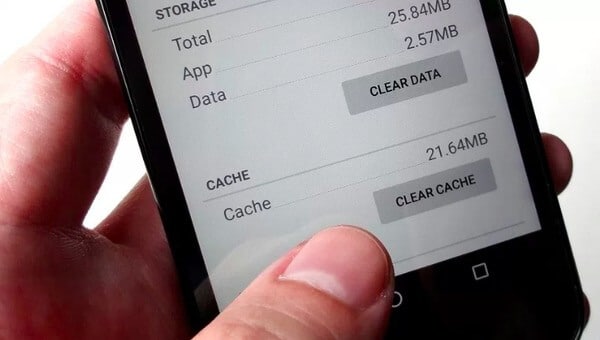
To solve the error android process.acore it would be enough to delete the data of some applications, to do this do the following:
Enter the phone settings, look for the Applications option and choose the “All” tab, in this way you can see all the applications installed on your phone.
Now you will have to search for the Facebook, Twitter and Gmail applications. Enter each of them and clear the data and cache. Restart the device and the problem should no longer appear.
2. Deactivate the synchronization of Google and other applications
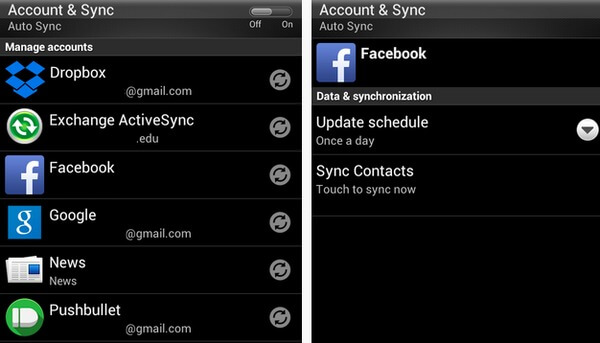
As we have already mentioned, the solution could be to deactivate the synchronization of all the accounts installed on your Android terminal, although especially that of Google. To perform this task you must do this:
Enter Settings and look for the “Accounts” section. There you will see the different accounts synchronized on your mobile, enter each of them and for synchronization.
You should pay special attention to the Google account, which is the first one that you should disable and test if the error ever appears again.
3. Update your Android OS
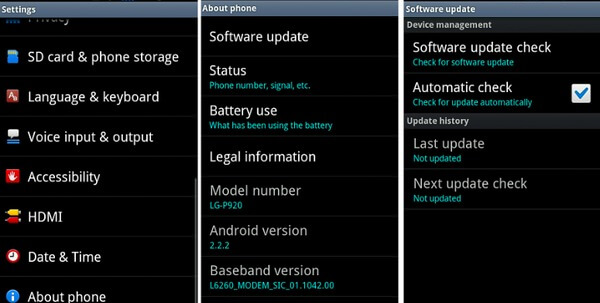
The error message that you are receiving might be due to Android OS old version. Consequently you have to update your gadget Operating System to get away of such problem. To know whether your Android OS have any updates or not,
- Go to Settings and then ‘About’ screen
- Click on ‘Software update’ option and ‘check for updates’ option
- Now update if any new version is available
- At last, let the phone reboot itself.
Must read – Glance.Intuit.com: Remote Access QuickBooks, TurboTax help
4. Uninstall WhatsApp
Another option that you can try is to uninstall the WhatsApp application from your phone. After removing it from the phone, restart your terminal and reinstall WhatsApp from Google Play. It is possible that this little trick will solve the problem mentioned above.
5. Remove contacts data from App manager
In this process, each and every one of your contacts will be deleted. But you don’t have to worry as you have already backed up your data in safe place.
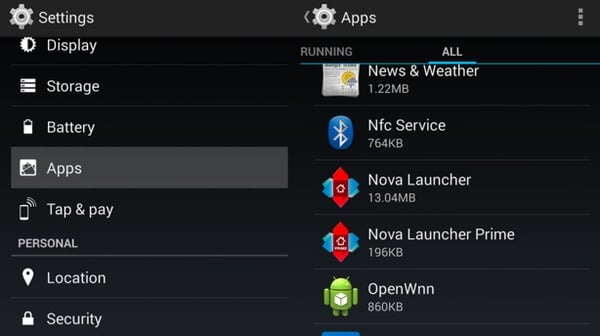
- First, go to Settings and click on App/ Application manager
- Now open ‘ALL’ tab where all list of applications will be displayed
- Here search and click ‘Contacts’ option
- Then hit on ‘Clear data’ button
- Again go back to application list, here search, and click on ‘Contacts storage’
- At last, press on ‘clear data’ button and restart your phone.
6. Factory data reset
If none of the above methods worked, you should try to factory reset your terminal. This is to delete all the content of the smartphone, both data and applications, so we recommend you save everything in a safe place and do not lose anything when formatting your phone.
Open Settings / Backup. At the bottom you will see the option to “reset factory data.” Click there and wait a couple of minutes for the whole process to finish. Remember that this action will delete all your data so make sure you have made a backup.
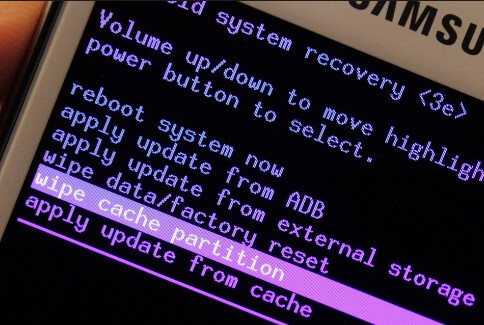
7. Clear system partition cache
yet there is a chance that user get such error due to system partition cache. Other than clearing it has solved the concern for several users. So follow the below steps:
- First, switch off your Smartphone
- Now press and hold Volume up + Power button + Home button all together
- System Recovery mode will be seen on screen
- Now use the volume up or down key to navigate
- Go to wipe cache partition and then click power button to confirm
8. Clear Application cache
So, on the way to fix ‘android.process.acore has stopped’ faulty error note on Android, you should clear application cache of the application that you are receiving the trouble from. To clear application cache:
- Go to Settings and click on Application manager
- Go down and select the application, which is viewing problem
- At last, click on ‘clear cache’ option
FIX “unfortunately the process android.process.acore has stopped” ERROR
- It would be enough to eliminate the synchronization with that service that is giving problems.
- But as I said, the problem is mainly due to an error in the synchronization of your mobile with Google services.
- For this reason, in most cases the solution is to factory reset the mobile to correct the Android.process.acore error .
- It is the most drastic solution you can take, but in almost all cases, it is the only solution available.
- And also, factory resetting a mobile means leaving it totally clean, so you will lose all the files and data on the phone.
- That is why it is VERY IMPORTANT that you have activated the synchronization with Gmail and activated the automatic backups .
- Thus, once you restart your mobile, you will have the option to install a backup copy of your apps, contacts and photos.

My Favourite And Most Effective Solution
FACTORY RESET THE MOBILE
- If you are patient enough and have time, one of the options to do so is to try to close the error windows to advance in the mobile settings.
- As fast as you close an error window, click on the app drawer to enter the mobile settings.
- As I have told you, it is a very tedious and frustrating method because you have to close the android.process.acore error window and try to advance to the mobile restoration option.
- With patience it is possible to restart the mobile in this way and solve the error.
Factory reset the mobile from recovery
- Another easier and faster option to factory reset the mobile is from its own Recovery.
- And what is recovery? You will ask yourself.
- The recovery is a part of the mobile software that we can access without having to load its operating system.
From it you can solve problems, perform factory restarts, clear cache, install updates, etc…
- To restart the mobile in recovery mode you will have to press and hold the on / off key.
- The option to restart the mobile should come out that we will have to try to press.
- When the mobile turns off to restart, you will have to press and hold down the volume down button on the device.
- It is the sequence for the mobile to restart in the boot loader mode that will allow you to access the recovery on Android.
Conclusion
Well, android.process.acore has stopped is a general problem these days which is faced by several Android users and it is also frustrating in the sense that it occurs after every 5 sec. I expect one of our solutions will definitely work for you. Please share our article if you problem solves.