

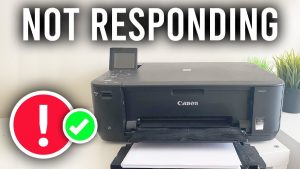
Printers are essential tools in both home and office settings. However, one of the most frustrating problems Windows users encounter is the dreaded “Printer Not Responding” error. If you are seeing this issue on Windows 10 or Windows 11, you’re not alone. Fortunately, this guide will walk you through practical, step-by-step solutions to get your printer back online, without the need for advanced technical skills.
Why Your Printer Might Not Respond
Before diving into solutions, it’s important to understand the common reasons behind printer issues in Windows:
- Connectivity Problems: The printer may not be properly connected to your PC via USB or network.
- Outdated or Corrupted Drivers: Printer drivers can become outdated or corrupt, causing communication errors.
- Printer Offline Mode: Sometimes, Windows mistakenly sets your printer to offline mode.
- Print Spooler Issues: The Windows Print Spooler service may be stopped or malfunctioning.
- Firewall or Antivirus Interference: Security software can block printer communication.
Identifying the potential cause will help you follow the right solution.
Step 1: Check Physical Connections
For USB printers, ensure the cable is securely connected to both your PC and the printer. If possible, try a different USB port or cable to rule out hardware issues.
For network or Wi-Fi printers, check the following:
- The printer is connected to the correct Wi-Fi network.
- The printer’s IP address matches what your computer is trying to access.
- Your router is functioning properly.
A simple restart of your printer and PC can sometimes resolve connectivity issues immediately.
Step 2: Set Printer as Default
Windows may send print jobs to a different printer if it is not set as default. Here’s how to check:
Windows 10:
- Open Settings → Devices → Printers & scanners.
- Select your printer and click Set as default.
Windows 11:
- Go to Settings → Bluetooth & devices → Printers & scanners.
- Click on your printer and choose Set as default printer.
Ensuring your printer is set as default often resolves print command errors.
Step 3: Restart the Print Spooler Service
The Print Spooler manages print jobs. If it’s stuck or not running, your printer may not respond.
- Press Windows + R, type services.msc, and hit Enter.
- Locate Print Spooler, right-click it, and select Restart.
- If it’s not running, select Start.
This can clear stuck print jobs and refresh printer communication.
Step 4: Update or Reinstall Printer Drivers
Outdated or corrupted drivers are a common cause of printer errors.
Update Drivers:
- Open Device Manager (Windows + X → Device Manager).
- Expand Printers, right-click your printer, and choose Update driver.
- Select Search automatically for drivers.
Reinstall Drivers:
- Uninstall the printer in Devices & Printers.
- Visit the manufacturer’s website and download the latest driver.
- Install the driver and reconnect your printer.
Keeping drivers up-to-date ensures compatibility with Windows updates.
Step 5: Check Printer Status
Sometimes, the printer is set to offline or paused.
- Go to Control Panel → Devices and Printers.
- Right-click your printer → See what’s printing.
- Make sure Use Printer Offline is unchecked and Pause Printing is disabled.
This simple step often fixes the “Printer Not Responding” problem instantly.
Step 6: Run Windows Troubleshooter
Windows has built-in tools to diagnose and fix printer issues.
Steps:
- Go to Settings → Update & Security → Troubleshoot → Additional troubleshooters.
- Click Printer → Run the troubleshooter.
- Follow the on-screen instructions.
The troubleshooter can automatically detect and fix common issues without technical knowledge.
Step 7: Disable Firewall and Antivirus Temporarily
Sometimes, firewall or antivirus software blocks printer communication. Temporarily disable them and try printing.
Important: Re-enable security software after testing to keep your system safe.
Step 8: Verify Network Printer Settings
If your printer is network-based:
- Ensure your PC and printer are on the same network.
- Ping the printer’s IP address from your PC to check connectivity.
- Assign a static IP to avoid future network conflicts.
Network printers can be particularly sensitive to Wi-Fi interruptions, so stability matters.
Step 9: Check for Windows Updates
Microsoft often releases updates that fix hardware compatibility issues.
- Open Settings → Update & Security → Windows Update.
- Click Check for updates and install any pending updates.
Updating Windows can resolve deeper software conflicts affecting printer performance.
Step 10: Advanced Fix – Reset the Printer
If nothing works, performing a full printer reset might help.
- Refer to your printer’s manual for factory reset instructions.
- Re-add the printer in Settings → Devices → Printers & scanners.
This restores default settings and often resolves persistent errors.
Tips to Avoid Printer Issues in the Future
- Regularly update printer drivers and firmware.
- Avoid using old USB cables or unstable network connections.
- Keep your PC and printer on the same network.
- Clear print queues regularly to prevent jams in the Print Spooler.
- Use original manufacturer consumables to reduce hardware errors.
Conclusion
Experiencing a “Printer Not Responding” error in Windows 10 or 11 can be frustrating, but most issues can be resolved with simple troubleshooting steps. From checking physical connections and updating drivers to restarting the Print Spooler and running Windows troubleshooters, each solution targets a common cause of printer problems. Following this guide carefully should have your printer running smoothly in no time.
Remember, prevention is key. Regular maintenance, timely updates, and network checks can save you from recurring printer headaches.