
Why Safe Software Installation and Updates Matter
Installing and updating software on your Windows PC is essential, but it can expose your system to risks if not done carefully. Malware disguised as legitimate programs or outdated software can leave your PC vulnerable. According to a 2023 Cybersecurity Ventures report, cybercrime costs the world $8 trillion annually, with malicious software installations being a key contributor. On the positive side, keeping software updated patches vulnerabilities, boosts performance, and extends your PC’s lifespan. As someone who’s been through countless Windows updates and installations, I’ll share practical, human-tested tips to keep your system secure and running smoothly.
Step 1: Verify the Source Before Downloading
The golden rule of safe software installation is downloading only from trusted sources. It’s easy to click the first link in a search result, but that’s a recipe for trouble. Here’s how to stay safe:
Stick to Official Websites
Always download software from the developer’s official site or a verified distributor. For example, get VLC Media Player from videolan.org, not a random third-party site. Official sources rarely bundle malware or bloatware.
Use the Microsoft Store
The Microsoft Store is a secure hub for vetted apps. It handles updates automatically and is ideal for tools like Zoom or Notion. While the selection is limited, it’s a low-risk option.
Spot Red Flags
Avoid sites with poor design, excessive ads, or suspicious URLs (e.g., “free-vlc-download.net”). These often host malware. If a site pushes an .exe file from an unverified source, close it immediately.
Pro Tip: Browser extensions like uBlock Origin or Malwarebytes Browser Guard can block malicious sites. I’ve relied on these for years to avoid sketchy downloads.
Step 2: Research the Software’s Reputation
Not every program is trustworthy. Before installing, take a moment to vet the software:
Check Reviews and Forums
Search for user feedback on Reddit, Trustpilot, or tech blogs. A quick “Is [software name] safe?” search can uncover red flags. Communities like r/techsupport or r/software offer real-world insights.
Verify Digital Signatures
Windows lets you check if a file is digitally signed. Right-click the installer, go to “Properties,” and look for the “Digital Signatures” tab. A valid signature ensures the file hasn’t been altered.
Scan with VirusTotal
If you’re unsure, upload the file to VirusTotal.com. It checks against multiple antivirus engines. I’ve used it to confirm the safety of lesser-known programs, and it’s saved me from risky downloads.
Step 3: Install Software Securely
Once you’ve verified the source and software, follow these steps for a safe installation:
Scan for Malware
Before running the installer, scan it with your antivirus. Windows Defender is reliable, but tools like Malwarebytes or Bitdefender add extra protection. I always scan downloads—it’s quick and prevents headaches.
Opt for Custom Installation
Free software often bundles unwanted extras like toolbars or browser extensions. Choose “Custom” or “Advanced” installation to deselect these. For example, when installing CCleaner, uncheck offers for bundled antivirus.
Install as a Standard User
Avoid using admin privileges unless necessary. As a standard user, Windows will prompt for admin credentials, adding a safety check. This habit has stopped me from installing dubious programs.
Track System Changes
Tools like Revo Uninstaller or Geek Uninstaller monitor what an installer does, making it easier to undo changes. I’ve used these to clean up after testing new software.
Step 4: Keep Software Updated
Outdated software is a security risk. A 2022 Ponemon Institute study found that 60% of data breaches exploit unpatched vulnerabilities. Regular updates fix these gaps and improve functionality. Here’s how to stay current:
Enable Auto-Updates
Most apps, like Chrome, Firefox, or Microsoft Office, support automatic updates. Enable this in their settings. For Chrome, go to Settings > About Chrome to verify updates.
Use Windows Update
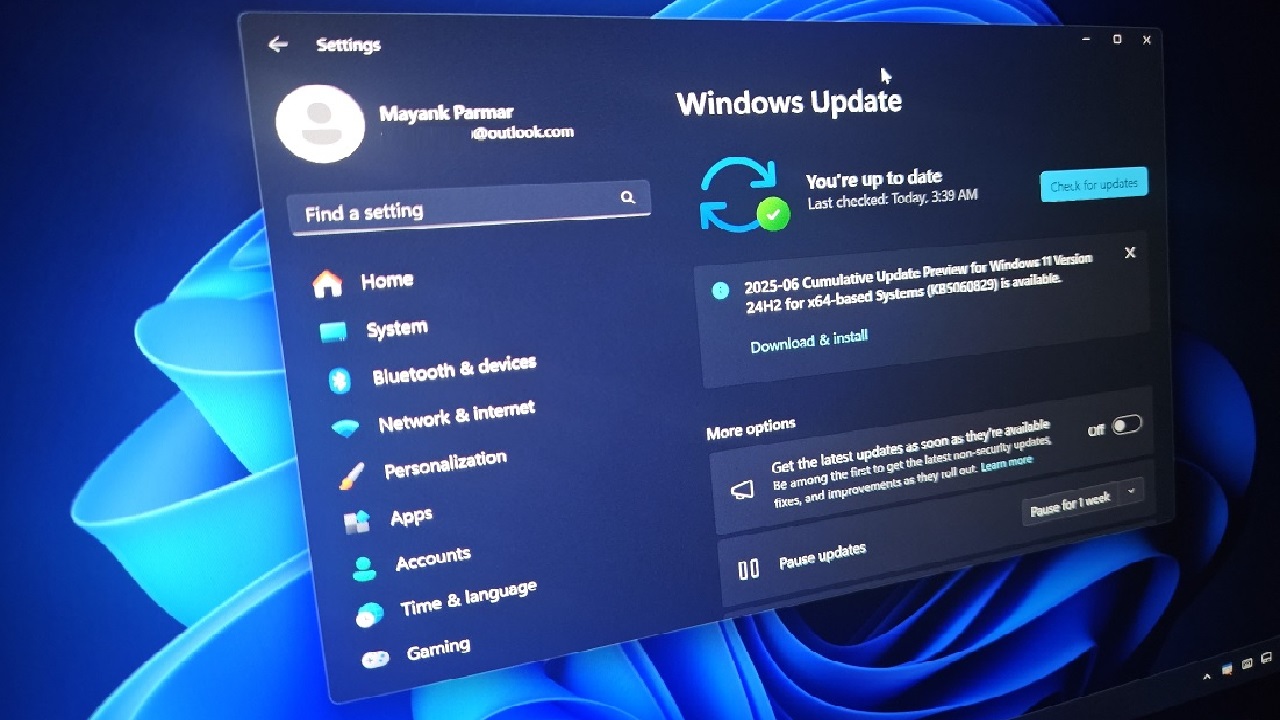
Windows Update patches the OS, Microsoft software, and some drivers. Check it regularly via Settings > Windows Update. I set mine to check daily to catch critical updates.
Try Update Managers
For apps without auto-updates, tools like Patch My PC or Ninite Updater simplify the process. They scan for outdated software and install updates from trusted sources. Patch My PC has been a game-changer for me.
Avoid Fake Update Prompts
Scammers use fake “Update Now” pop-ups to deliver malware. If you see one, close it and manually check for updates through the software or its official site.
Step 5: Stay Safe During Updates
Updates can sometimes cause issues or introduce vulnerabilities. Here’s how to protect your system:
Create a Restore Point
Before major updates (like a new Windows version or complex software), create a restore point via Control Panel > System > System Protection > Create. It’s a lifesaver if an update goes wrong.
Back Up Your Data
Always back up files before big updates. Use an external drive, cloud storage (OneDrive, Google Drive), or Windows’ Backup and Restore. I learned this after losing files to a failed update years ago.
Test on a Secondary Device
If you’re cautious, test updates on a secondary PC or virtual machine (using VirtualBox) before applying them to your main system. This has saved me from buggy updates.
Step 6: Remove Unneeded Software
Unused software can clutter your system and pose risks. Here’s how to clean up:
Uninstall Unused Apps
Go to Settings > Apps > Installed Apps (or Control Panel > Programs and Features) to remove programs you don’t need. Sort by date or size to spot bloatware.
Use Advanced Uninstallers
Standard uninstallers often leave remnants. Revo Uninstaller removes leftover files and registry entries. I’ve used it to clean up after messy programs like old antivirus tools.
Remove Bloatware
New PCs often come with preinstalled bloatware. Tools like PC Decrapifier can identify and remove these safely. Stripping bloatware from my last laptop boosted its performance noticeably.
Step 7: Maintain a Secure System
Safe installation and updating are part of a bigger security picture. Here are additional tips:
Keep Antivirus Active
Ensure your antivirus is always running and updated. Windows Defender works well, but premium options like Kaspersky or ESET NOD32 offer extra protection for sensitive data.
Enable Windows Firewall
Verify that Windows Firewall is active (Settings > Network & Internet > Windows Firewall). It blocks unauthorized access during installations and updates.
Update Drivers
Outdated drivers can cause issues with new software. Use Device Manager or Snappy Driver Installer to keep them current. I update my graphics drivers monthly for smooth gaming.
Stay Informed
Follow sites like BleepingComputer or The Verge for news on software vulnerabilities. Joining r/windows keeps you updated on emerging threats.
Common Mistakes to Avoid
Even experienced users make errors. Watch out for these:
- Ignoring Updates: Delaying updates leaves your system vulnerable. Schedule them for off-hours if you’re busy.
- Unverified Downloads: “Free” versions of premium software often hide malware. Stick to legitimate sources.
- Skipping Backups: One bad update can wipe data. Always back up.
- Running Old Software: If a program isn’t updated, replace it with a modern alternative.
Helpful Tools for Safe Software Management
These tools have made my life easier:
- Ninite: Installs multiple apps from trusted sources, skipping bloatware.
- Patch My PC: Automates updates for many programs.
- Malwarebytes: Catches malware missed by Windows Defender.
- Revo Uninstaller: Removes leftover files after uninstalling.
- VirusTotal: Scans files for malware across multiple engines.
Final Thoughts
Safely installing and updating software on Windows is about caution and consistency. By downloading from trusted sources, verifying software, enabling auto-updates, and maintaining a secure system, you’ll keep your PC safe and efficient. I’ve learned these lessons through years of trial and error, and they’ve saved me from countless tech headaches. Take these steps to heart, and your Windows experience will be smoother and more secure.
If you’re ever unsure, pause and research. Online communities like r/windows or tech forums are great for advice. Your PC is a powerful tool—treat it with care, and it’ll serve you well.